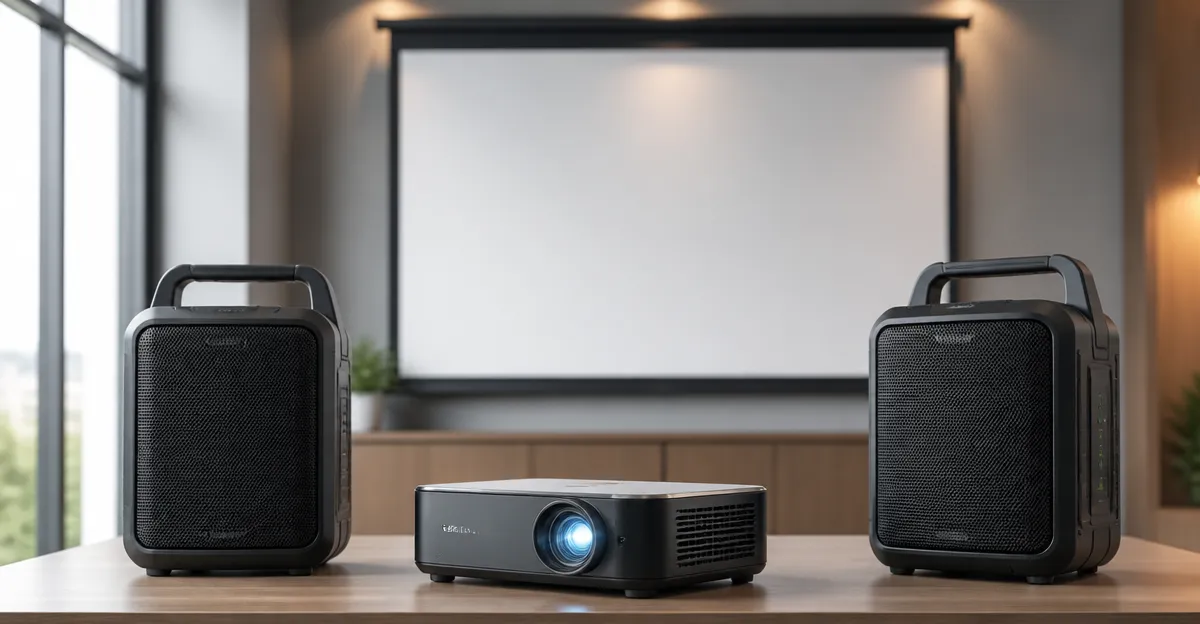
How to Match a Mini Projector with Battery‑Powered PA Speakers: Step‑by‑Step Setup, Best Connections & Audio Sync Tips
Introduction
One will discover how to combine a compact projector with a portable PA system to create an immersive audio‑visual experience in any environment. The guide explains why matching projector brightness and speaker power matters for audience comfort and content clarity. Readers will gain confidence in selecting compatible devices, establishing reliable connections, and achieving precise audio‑video synchronization. The knowledge presented is valuable for educators, event organizers, and small‑business owners who require flexible, high‑quality presentations without reliance on permanent infrastructure.
What You’ll Need
- Mini projector (e.g., YGSKK Mini Projector or Philoent Mini Projector)
- Battery‑powered PA speaker (e.g., Bose S1 Pro+ PA Speaker or Mackie Thump GO)
- HDMI cable (included with most projectors)
- Audio cable or Bluetooth‑enabled device for wireless audio
- Power bank or spare battery pack for extended sessions
- Tripod or speaker stand for optimal positioning
Step 1: Select a Projector That Complements Your Audio Needs
Begin by evaluating the ambient lighting conditions of the intended venue. A projector with at least 300 ANSI lumens, such as the YGSKK Mini Projector, provides sufficient brightness for indoor rooms and modest outdoor settings. The YGSKK model offers native 1080p resolution, Wi‑Fi 6 connectivity, and Bluetooth 5.3 for auxiliary audio devices, making it a versatile choice for streaming services without additional hardware. Priced at $73.99 and holding a 4.5‑star rating from 5,314 reviews, it balances cost and performance effectively.
If the venue requires a shorter throw distance, the Philoent Mini Projector delivers a 0.8:1 short‑throw ratio, enabling a 100‑inch image from just a few feet away. Its 200 ANSI lumens and built‑in speaker are suitable for bedroom or dorm presentations, though external PA speakers will still provide superior sound coverage. At $75.99 with a 4.4‑star rating from 7,732 reviews, it offers a lightweight (0.85 lb) solution for frequent relocation.
Step 2: Choose a Battery‑Powered PA Speaker That Matches the Projector’s Output
The PA speaker should deliver clear, amplified audio without overpowering the visual content. The Bose S1 Pro+ PA Speaker weighs 14.4 lb, features a rechargeable lithium‑ion battery lasting up to 11 hours, and includes a three‑channel mixer with independent EQ and reverb controls. Its four positioning options and Auto EQ ensure consistent sound regardless of orientation, which is essential when the speaker must be placed on a stand or mounted on a tripod beside the projector. Priced at $699.00 and rated 4.6 stars by 1,874 reviewers, it represents a premium yet reliable option for professional‑grade events.
For a more budget‑friendly alternative, the Mackie Thump GO offers an 8‑inch custom woofer, removable lithium‑ion battery, and Bluetooth streaming. Its 4.5‑star rating from 532 reviews and price of $449.99 make it an attractive middle ground. The speaker includes a “Music Ducking” feature that automatically lowers music volume when a microphone is used, which simplifies live‑talk segments during a presentation.
Step 3: Position the Projector and Speaker for Optimal Coverage
Place the projector on a stable surface or tripod at a distance that yields the desired screen size, typically 50‑200 inches for most indoor venues. Use the projector’s built‑in keystone correction and auto‑focus (both YGSKK and Philoent models provide these features) to achieve a rectangular image without distortion. Align the speaker so that its main dispersion axis points toward the audience, avoiding direct placement behind the screen where sound may be muffled.
When using the Bose S1 Pro+, consider its vertical orientation for a broader soundstage, as the Auto EQ will adapt to the speaker’s tilt. If a smaller footprint is required, the Thump GO’s “Outdoor Mode” button can be engaged to preserve low‑frequency response while the unit is positioned on uneven terrain.
Step 4: Connect Audio Between Projector and PA Speaker
There are two reliable methods to route audio: wired HDMI audio extraction or wireless Bluetooth pairing. For wired connections, attach an HDMI cable from the projector’s HDMI output to a small audio extractor (not supplied) and run a 3.5 mm or XLR cable into the PA speaker’s line‑in jack. This method eliminates latency and ensures full‑bandwidth sound, which is critical for music‑heavy presentations.
If a cable‑free setup is preferred, enable Bluetooth on the projector (YGSKK supports Bluetooth 5.3, Philoent supports Bluetooth 5.4) and pair it with the speaker’s Bluetooth receiver. The Bose S1 Pro+ includes integrated wireless RF receivers for dedicated microphone and instrument transmitters, but it also accepts standard Bluetooth audio streams. The Thump GO’s Bluetooth connectivity pairs seamlessly with the projector, allowing quick setup in under two minutes. Note that Bluetooth introduces a slight latency (approximately 100‑200 ms), which can be mitigated by enabling “Audio Sync” settings in the projector’s menu if available.
Step 5: Manage Power Sources for Uninterrupted Playback
Both the projector and the PA speaker operate on rechargeable batteries, so assess the expected runtime before the event. The Bose S1 Pro+ promises up to 11 hours at moderate volume, while the YGSKK projector offers up to 3‑4 hours of continuous use depending on brightness settings. To extend runtime, bring a high‑capacity power bank (minimum 20 000 mAh) and a compatible DC power adapter for each device. Connect the power bank to the projector via its USB‑C input and to the speaker via its DC input port, ensuring that voltage and amperage specifications match the manufacturer’s recommendations.
For outdoor events where power outlets are unavailable, consider a portable generator rated for at least 500 W to supply both devices simultaneously. Always test the generator with the equipment prior to the event to verify stable voltage and to avoid unexpected shutdowns.
Step 6: Calibrate Audio and Video for Seamless Synchronization
After establishing connections, perform a quick sync test by playing a video clip that contains a distinct visual cue (e.g., a clapperboard) and a corresponding audio click. Observe the delay between the visual cue and the sound heard from the PA speaker. If the audio lags, adjust the projector’s “Audio Delay” setting (available on both YGSKK and Philoent models) in increments of 10 ms until the two are aligned. For wired setups, latency should be negligible; for Bluetooth, a delay of 100‑150 ms is typical and can be compensated using this setting.
Next, fine‑tune the speaker’s EQ to match the room acoustics. Use the Bose app or Mackie Thump Connect 2 app to select a preset (e.g., “Speech” for presentations or “Music” for concerts). Adjust the volume so that speech remains intelligible at a comfortable level while still allowing occasional musical interludes to be heard without distortion. Conduct a short walk‑through test, standing at various points in the audience area to verify consistent coverage.
Step 7: Conduct a Full‑Scale Run‑Through
Before the actual event, run the entire presentation from start to finish, including any live microphone segments. Verify that the projector’s built‑in apps (Prime Video, YouTube, etc.) load without buffering, and confirm that the Wi‑Fi 6 connection remains stable throughout. Ensure that the PA speaker’s battery indicator remains in the green zone, and that any wireless transmitters are securely paired.
Document the optimal settings (projector brightness level, speaker volume, EQ preset, audio delay) in a quick‑reference sheet. This documentation will allow rapid re‑setup for future events and will minimize the risk of last‑minute adjustments.
Tips & Pro Tips
- Use a short‑throw projector like the Philoent model when space is limited; it reduces shadowing caused by presenters standing between the projector and screen.
- Employ a windscreen on the microphone when using the Bose S1 Pro+ in outdoor environments to prevent wind‑induced noise.
- Activate the “Music Ducking” feature on the Mackie Thump GO to automatically lower background music during spoken segments, eliminating the need for manual fader adjustments.
- Keep firmware updated on both projector and speaker via their respective apps to benefit from performance improvements and bug fixes.
- When using Bluetooth, place the projector and speaker within a 10‑meter line‑of‑sight to maintain a stable connection and reduce latency.
Troubleshooting
No Audio Output: Verify that the projector’s audio output mode is set to “External Speakers.” Re‑pair Bluetooth devices or replace the audio cable if the issue persists.
Image Flickering: Reduce projector brightness slightly and ensure the ventilation grilles are not obstructed. Overheating can cause intermittent flicker.
Battery Drain Faster Than Expected: Lower projector brightness to 50 % and speaker volume to a moderate level. Use a power bank as a supplemental source.
Audio‑Video Desynchronization: Adjust the projector’s audio delay setting in 10 ms steps. If using Bluetooth, consider switching to a wired connection for critical timing.
Conclusion
One has now learned how to pair a mini projector with a battery‑powered PA speaker, from product selection through power management and synchronization. By following the step‑by‑step instructions, the audience will experience crisp visuals and clear, balanced sound without reliance on fixed infrastructure. The guide empowers educators, event planners, and small‑business owners to deliver professional‑grade presentations in any location.
Frequently Asked Questions
How do I choose the appropriate brightness (lumens) for a mini projector when using it with battery‑powered PA speakers?
Select a projector with at least 2,500–3,000 lumens for indoor use and 4,000+ lumens for outdoor settings to ensure the image remains clear despite ambient light.
What is the best way to connect audio from a mini projector to a battery‑powered PA speaker?
Use a 3.5 mm aux cable or Bluetooth (if both devices support it) for a simple, low‑latency connection; RCA adapters can be used for older speaker inputs.
How can I minimize audio‑video sync delay between the projector and PA speaker?
Enable any built‑in audio delay setting on the projector or speaker, and if needed, adjust the delay manually in 10‑ms increments until lip‑sync is correct.
Do I need an external power source for the PA speaker if it’s battery‑powered?
No, a fully charged battery provides several hours of operation, but keep a spare battery or charger handy for longer events.
What common compatibility issues should I watch for when pairing a mini projector with a portable PA system?
Check that the projector’s audio output matches the speaker’s input type (aux, RCA, or Bluetooth) and verify voltage and battery life to avoid unexpected shutdowns.