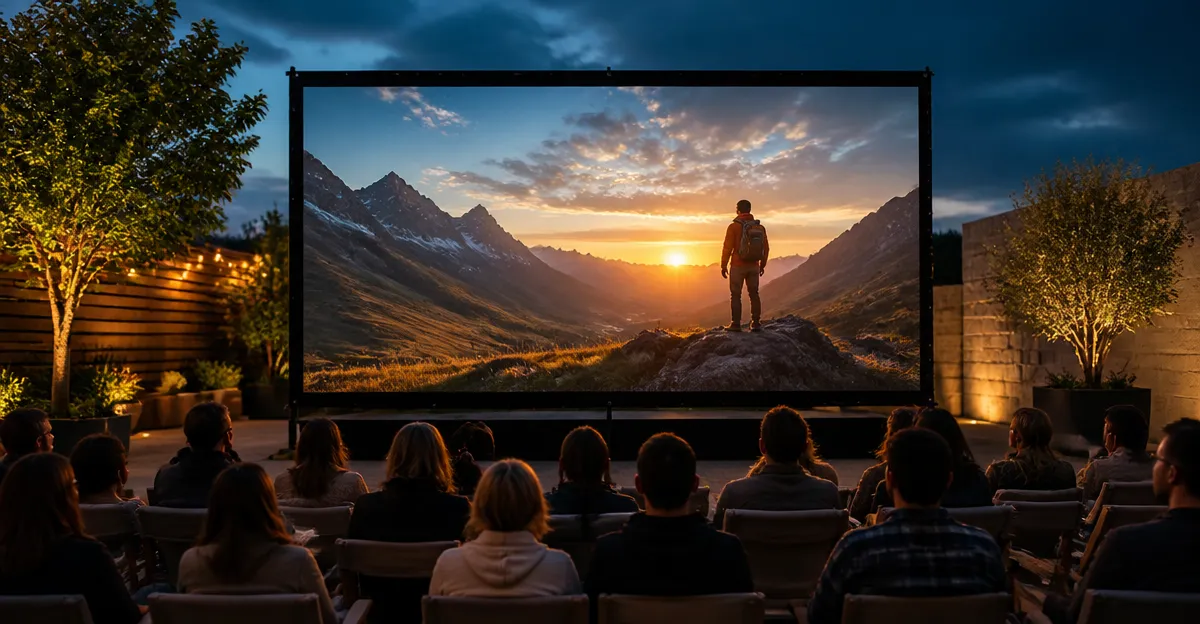
Introduction
Outdoor movie nights and public screenings often rely on subtitles to reach multilingual audiences or hearing‑impaired viewers. This guide explains how to create readable, high‑contrast captions that remain legible under bright sunlight, ambient light, and variable viewing distances. Readers will learn the equipment required, precise configuration steps, and best‑practice tips that transform ordinary subtitles into professional‑grade on‑screen text.
By following these instructions, one can avoid common pitfalls such as washed‑out lettering, misplaced captions, or flickering text caused by unstable screens. The result is a polished presentation that enhances audience engagement and demonstrates technical competence.
What You’ll Need
- A stable, large‑format outdoor projector screen (recommended: STWUI Outdoor Projector Screen)
- Portable projector with 1080p or higher resolution
- Subtitle creation software (e.g., HandBrake, Subtitle Edit)
- Contrast‑enhancing overlay or matte (optional)
- Measuring tape or laser distance meter for optimal screen‑projector distance
Step‑by‑Step Instructions
1. Select a Stable, Large‑Format Screen
The foundation of any outdoor projection is the screen itself. A 120‑inch, 16:9 screen provides sufficient width for both video and subtitles, while the weighted chassis prevents wobble caused by wind or uneven ground.
The STWUI Outdoor Projector Screen features a new‑generation chassis with added floor‑nail holes, guaranteeing stability on uneven surfaces. Its wrinkle‑free milk‑silk material folds compactly yet remains taut when deployed, delivering high‑resolution images without creases that could distort subtitle lines.
- Screen size: 120 inches (diagonal)
- Aspect ratio: 16:9, ideal for cinematic framing
- Material: washable premium milk silk, wrinkle‑free
- Price: $66.46
- Rating: 4.3/5.0 (1,197 reviews)
Why this screen matters: a stable surface keeps subtitle placement consistent across the entire viewing area, and the high‑contrast surface improves legibility when paired with bright projectors.
2. Configure Projector Settings for Optimal Brightness
Outdoor environments demand higher lumen output. Set the projector to its maximum brightness and adjust the keystone correction to ensure the image fills the screen evenly. A uniform image prevents uneven subtitle shading that can arise from distorted corners.
Measure the distance between projector lens and screen; a 1.5 × screen‑width distance typically yields the best focus for 1080p sources. Use a laser distance meter to verify the distance and adjust zoom accordingly.
3. Choose a Legible Font and Size
Sans‑serif fonts such as Arial, Helvetica, or Open Sans render clean lines that remain distinct at a distance. Set the subtitle font size to at least 5 % of the screen height; on a 120‑inch screen this translates to roughly 6 inches of letter height, which is comfortably readable from 20‑30 feet away.
When exporting subtitles, embed the chosen font directly into the video file (e.g., using HandBrake’s "Burn‑in" option). This eliminates reliance on the viewer’s device fonts and guarantees consistency.
4. Apply High‑Contrast Styling
Outdoor lighting reduces perceived contrast. To counteract, add a thin, semi‑transparent black box (often called a "subtitle bar") behind the text. Set the box opacity to 45 % and the text color to pure white (RGB 255,255,255). This combination yields a contrast ratio well above the 4.5:1 threshold recommended by accessibility guidelines.
If a matte overlay is available, place it on the screen surface to diffuse ambient light, further sharpening the text edges.
5. Position Subtitles for Maximum Visibility
Place captions near the bottom third of the screen, but keep them at least 5 % above the bottom edge to avoid interference from projector lens spill. This positioning ensures that viewers seated in the front row do not have their sightlines blocked, while distant viewers can still see the text clearly.
Use the subtitle software to set a custom vertical offset, measured in pixels, rather than relying on the default 2‑pixel margin.
6. Test Under Real‑World Lighting Conditions
Before the event, conduct a full‑screen test at dusk and under direct sunlight. Record a short clip of the projected subtitles and observe any wash‑out. If the text appears faint, increase the black box opacity or raise the projector brightness by 10 % increments.
Document the final settings in a checklist so the same configuration can be reproduced for future screenings.
Tips & Pro Tips
- Use a portable power source. A high‑capacity battery pack prevents voltage drops that could dim the projector mid‑show.
- Apply a windbreak. Even a lightweight screen can flutter; surrounding the screen with a portable windscreen reduces movement and preserves subtitle alignment.
- Prefer white text on a dark bar. This arrangement outperforms colored text on a transparent background in bright outdoor settings.
- Pre‑render subtitles into the video file. Burn‑in captions avoid latency that occurs when external subtitle tracks are streamed.
Troubleshooting
| Problem | Possible Cause | Solution |
|---|---|---|
| Subtitles appear washed out | Insufficient projector lumen or excessive ambient light | Increase projector brightness, add a matte overlay, or raise black‑box opacity. |
| Text flickers or shifts | Unstable screen chassis | Secure the screen with the weighted chassis and use the floor‑nail holes for anchoring. |
| Letters are too small to read | Font size set too low for screen height | Adjust font size to ≥5 % of screen height; re‑export subtitles. |
Conclusion
Optimizing subtitles for outdoor projection requires careful selection of a stable screen, precise projector configuration, and deliberate subtitle styling. By following the six steps outlined above, one can achieve crisp, high‑contrast captions that remain legible from any viewing distance, even under bright daylight.
Apply the troubleshooting checklist whenever issues arise, and remember that the STWUI Outdoor Projector Screen provides a reliable foundation for any outdoor cinema setup.
Products Mentioned in This Guide
Frequently Asked Questions
How can I increase subtitle contrast for outdoor projection?
Use a high‑contrast color scheme (e.g., white text on a semi‑transparent black box) and add a matte overlay to boost legibility under sunlight.
What font size and style work best for outdoor subtitles?
Choose a sans‑serif font at least 48 pt for a 100‑ft screen, with bold weight to ensure readability from a distance.
Should I use a specific subtitle format for outdoor screenings?
SRT or WebVTT are recommended because they are widely supported and allow easy timing adjustments for large‑format displays.
How do I prevent subtitle flickering on a portable projector?
Set the subtitle burn‑in or overlay to match the projector’s refresh rate (usually 60 Hz) and avoid using transparent backgrounds that can cause aliasing.
What essential equipment do I need to display subtitles outdoors?
A stable outdoor screen, a 1080p+ projector, subtitle creation software, and optionally a contrast‑enhancing matte or overlay for bright conditions.