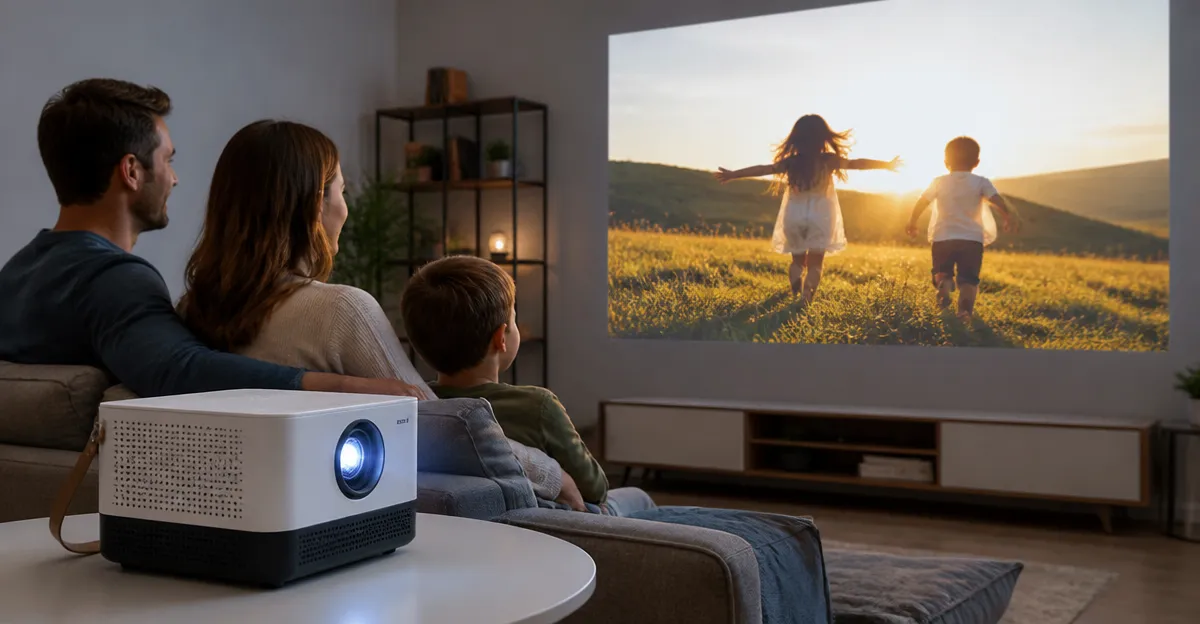
How to Set Up Parental Controls on Portable Projectors: Step‑by‑Step Guide to Kid‑Safe Viewing and Streaming
Introduction
Portable projectors have become a popular way for families to bring cinema‑quality entertainment to bedrooms, backyards, and even car trips. However, the same flexibility that makes these devices convenient also opens the door to inappropriate content, accidental screen time, and unmonitored streaming. This guide explains how to configure parental controls on two of the most affordable and feature‑rich projectors on the market. By the end of the article, readers will be able to create safe viewing zones, limit app access, and enforce time limits without sacrificing picture quality or convenience.
What You’ll Need
- One portable projector (e.g., HOMPOW Mini Projector or Wielio Smart Projector)
- Bluetooth speaker or headphones for private audio (optional)
- Micro‑USB/Type‑C to HDMI adapter or Lightning to HDMI adapter for screen mirroring
- Wi‑Fi network with a stable password
- Smartphone or tablet for initial configuration
Step 1 – Unbox and Position Your Projector
Place the projector on a stable surface at least 1.5 m from the wall or screen. For ceiling‑mounted setups, use the built‑in adjustable stand that comes with the device. The stand allows 360° rotation, which is essential for finding the optimal projection angle before any parental controls are applied.
Why this matters: A correctly positioned projector reduces keystone distortion, meaning the later keystone‑correction tools will have less work to do, resulting in a clearer picture for children.
If you own the Wielio Smart Projector, its 120° adjustable stand eliminates the need for a separate mount, saving both time and money.
Step 2 – Connect Power and Source Devices
Plug the projector into a power outlet using the supplied AC adapter. Then connect your source device:
- For Android phones, attach a Micro‑USB/Type‑C to HDMI adapter.
- For iOS devices, use a Lightning‑to‑HDMI adapter (sold separately).
- Alternatively, insert a USB‑C flash drive or a TV stick to stream directly from services such as Netflix.
The HOMPOW Mini Projector includes both USB 2.0 and HDMI 2.0 ports, allowing seamless switching between a laptop, gaming console, or a TV stick without additional cables.
Step 3 – Enable Built‑In Parental Controls (HOMPOW Mini Projector)
The HOMPOW Mini Projector offers a hidden menu accessed via the remote’s long‑press on the “Menu” button. Follow these actions:
- Press and hold “Menu” for three seconds.
- Select “Settings” → “Safety”.
- Toggle “Parental Lock” to On.
- Set a four‑digit PIN that only adults know.
Once activated, the projector will block any input source that is not whitelisted. This feature is useful for preventing children from launching unapproved apps or connecting unauthorized USB drives.
Why choose this method: The built‑in lock works at the hardware level, meaning it cannot be bypassed by simply uninstalling an app. It also preserves the projector’s low‑noise operation, which is essential for bedtime viewing.
Step 4 – Configure App Restrictions (Wielio Smart Projector)
The Wielio Smart Projector runs Android 11 with an integrated App Store. To create a kid‑safe environment:
- Power on the device and navigate to Settings → Security → Parental Controls.
- Enable “Create Child Profile”.
- Enter a secure PIN and choose the age range (e.g., 3‑7 years).
- Toggle “App Restrictions” and select only the pre‑approved streaming apps such as YouTube Kids, Prime Video Kids, or the built‑in Netflix app.
This step leverages the projector’s native Android operating system, which provides granular control over individual apps, unlike the generic lock on the HOMPOW model.
Price and performance comparison: The Wielio Smart Projector costs $104.99 and holds a 4.9/5 rating from 98 reviews, indicating reliability for families who need robust software controls. In contrast, the HOMPOW Mini Projector is $29.98 with a 4.1/5 rating, making it a budget‑friendly alternative for households that prefer hardware‑level locks.
Step 5 – Set Viewing Time Limits
Both projectors include an auto‑off timer:
- HOMPOW: Access the timer via Settings → Auto‑Off → choose 30‑minute intervals.
- Wielio: Open Settings → Display → Sleep Timer → set a maximum of 45 minutes per session.
To enforce the limit across multiple devices, pair the projector with a Bluetooth speaker that also supports a timer function. The HOMPOW’s two‑way Bluetooth 5.1 allows the projector to act as a Bluetooth speaker, so you can play soothing music while the screen automatically powers down after the allotted time.
Step 6 – Protect Eyes with Blue‑Light Filters
Both models advertise eye‑protective technology. Enable the feature in the projector’s menu:
- HOMPOW: Settings → Eye Protection → set “Low‑Blue” mode to On.
- Wielio: Settings → Display → Blue Light Filter → select “Comfort” level.
Activating these modes reduces retinal strain during late‑night movie sessions, an essential consideration for growing eyes.
Step 7 – Create a Guest Wi‑Fi Network for Kids
Instead of sharing the home network password, set up a separate SSID on your router called “Kids‑Screen”. Connect the projector to this network and enable the router’s parental‑control feature to block adult‑only sites. This network isolation works regardless of which projector you own.
Tips & Pro Tips
- Use a dedicated Bluetooth speaker. A speaker with its own volume limit prevents children from raising the sound to unsafe levels. The HOMPOW’s built‑in 5 W stereo speakers are adequate for small rooms, but a separate speaker offers more precise control.
- Label cables. Color‑code HDMI, USB, and power cords so children can easily identify which cables are off‑limits.
- Schedule weekly checks. Review the child profile on the Wielio Smart Projector each Sunday to ensure newly installed apps have not been added without permission.
- Enable “Do Not Disturb” mode. On the Wielio, this silences notifications while a movie is playing, preventing accidental interruptions.
Troubleshooting
| Problem | Possible Cause | Solution |
|---|---|---|
| Parental lock does not activate | Remote firmware outdated | Update firmware via USB using the manufacturer’s website. |
| App restriction list resets | Child profile not saved | Re‑enter PIN and ensure “Save Profile” is checked. |
| Auto‑off timer fails | Power‑saving mode disabled | Re‑enable “Energy Saving” in Settings. |
Conclusion
By following the seven steps above, parents can transform any portable projector into a secure, kid‑friendly entertainment hub. Whether the budget‑conscious family selects the $29.98 HOMPOW Mini Projector or the premium $104.99 Wielio Smart Projector, the essential controls—hardware lock, app whitelist, timer, and eye protection—remain the same. Implementing these safeguards protects children’s vision, limits screen time, and gives parents peace of mind.
Products Mentioned in This Guide
Frequently Asked Questions
How can I enable parental controls on the HOMPOW Mini Projector?
Access the Settings menu, select 'Parental Controls,' set a PIN, and toggle restrictions for apps, content ratings, and screen time.
Can I set time limits for kids using a portable projector?
Yes, most models let you define daily or per‑session limits in the Parental Controls section, after which the projector will automatically lock.
Do portable projectors support content‑rating filters?
Both the HOMPOW and Wielio projectors include rating filters (e.g., G, PG‑13) that block streams exceeding the chosen level.
Is it possible to block specific streaming apps on a portable projector?
You can disable or hide individual apps from the home screen via the Parental Controls settings or by uninstalling them.
What accessories improve kid‑safe viewing on a portable projector?
Using Bluetooth headphones or a speaker with volume limits, plus a secure wall‑mount or stand, helps keep audio private and the device out of reach.