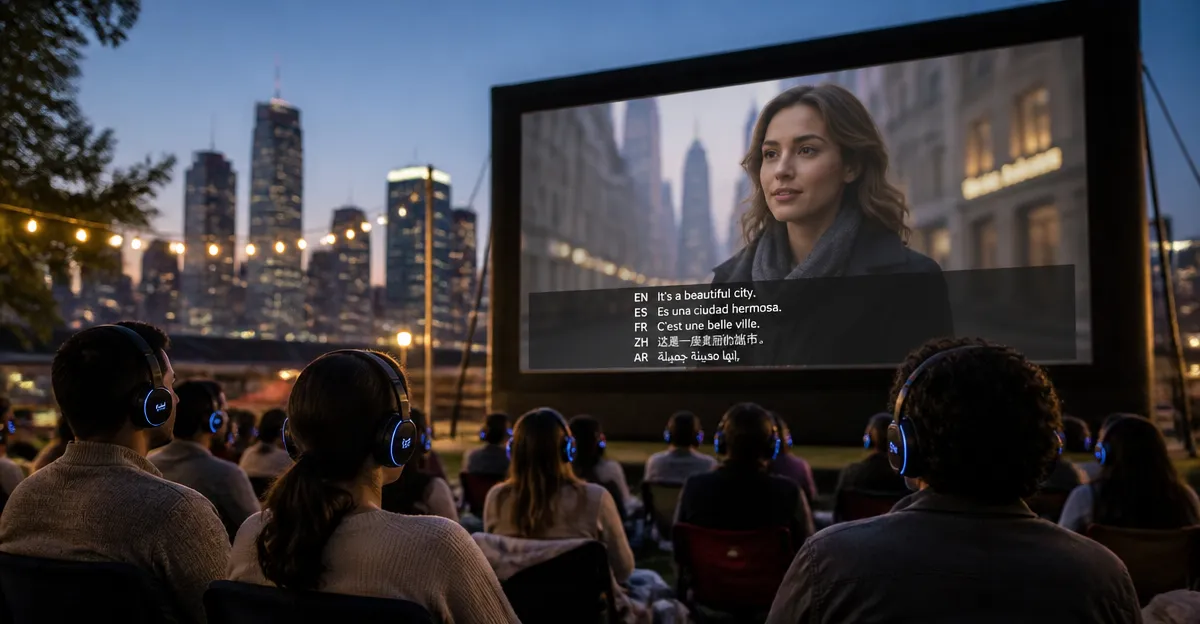
How to Add and Sync Multi‑Language Subtitles for Outdoor Screenings: A Step‑by‑Step Guide for Event Organizers
Introduction
Organizing an outdoor screening requires careful planning, especially when the audience includes speakers of multiple languages. This guide will teach the reader how to create, synchronize, and test subtitles in several languages so that every viewer can enjoy the content without missing critical dialogue. The instructions are practical, actionable, and incorporate reliable products that simplify each stage of the workflow. By following the steps, event organizers will be able to deliver a professional and inclusive viewing experience.
What You'll Need
- Source video files or DVD box sets of the film or series you intend to screen. Recommended examples include Pursuit of Jade DVD Box Set, Boys Over Flowers DVD Box Set, and Hidden Love DVD Box Set.
- A subtitle creation application such as SRT Creator Subtitles App for generating accurate subtitle files.
- A computer with video editing or playback software capable of importing SRT files (e.g., VLC Media Player, HandBrake, or professional editing suites).
- External storage media (USB flash drive or external SSD) for transporting video and subtitle files to the outdoor venue.
- Projection equipment, audio system, and a reliable power source.
- Promotional merchandise such as the Subtitles On My Face T-Shirt to enhance audience engagement.
Step 1: Acquire High‑Quality Source Media
The foundation of a successful outdoor screening is a high‑definition source that can be projected onto a large screen without pixelation. Physical DVD box sets often contain the original, uncompressed video streams and include multiple subtitle tracks that can serve as reference material. For example, Pursuit of Jade DVD Box Set offers 40 episodes with English subtitles, a rating of 4.7/5 from 18 reviews, and a price of $61.00. Its all‑region format ensures compatibility with most DVD players, making it a versatile choice for organizers who prefer physical media. Similarly, Boys Over Flowers DVD Box Set provides 25 episodes, a 4.8/5 rating from 245 reviews, and a price of $45.00, delivering a well‑known Korean drama with built‑in subtitles. Hidden Love DVD Box Set adds a romantic Chinese series at $41.00 with a 4.7/5 rating, expanding the genre options for diverse audiences.
When purchasing, verify that the DVD includes English subtitles or the language you intend to use as a base. The included subtitles can be extracted using DVD ripping software, which simplifies the creation of additional language tracks. If the DVD is limited to a single subtitle language, the organizer may need to source a separate subtitle file from a reputable online database.
Step 2: Choose a Subtitle Creation Tool
Creating accurate subtitles in multiple languages requires a dedicated application that supports time‑code editing, translation import, and batch export. The SRT Creator Subtitles App is designed for this purpose. It costs $0.00 (free on the Amazon Appstore) and has received positive feedback for its intuitive interface and reliable export options. The app allows users to load an existing SRT file, translate each line manually or via integrated translation services, and adjust timing to match the video precisely. Its ability to export multiple language files simultaneously reduces the workload for event organizers who need to cater to multilingual audiences.
Alternative tools such as Aegisub or Subtitle Edit are also available, but SRT Creator offers the advantage of being an Amazon‑approved app, ensuring compatibility with Android‑based devices that may be used on‑site for quick subtitle edits.
Step 3: Generate Subtitles in the Desired Languages
Begin by loading the base subtitle file extracted from the DVD into SRT Creator. The app displays each caption with its start and end timestamps, allowing the organizer to edit the text directly. For each target language, create a new subtitle track by selecting the "Add Language" option and entering the translated text. It is advisable to involve native speakers or professional translators to maintain nuance and cultural relevance. Once the translations are complete, use the "Sync" feature to automatically adjust any drift caused by differing speech rates.
After verification, export each language as an individual .srt file. Name the files clearly, for example, "Pursuit_of_Jade_EN.srt" for English, "Pursuit_of_Jade_ES.srt" for Spanish, and so forth. Store all files in a dedicated folder on your computer to keep the workflow organized.
Step 4: Sync Subtitles with the Video File
Even with precise timestamps, minor mismatches can occur when the video is played on different hardware. To ensure perfect synchronization, import the video file and each .srt file into a video editing program such as HandBrake or VLC. In HandBrake, select the "Subtitles" tab, add each .srt file, and enable the "Default" option for the primary language. Use the preview function to confirm that captions appear exactly when dialogue is spoken. If adjustments are necessary, return to SRT Creator to fine‑tune the timing, then re‑export.
For outdoor screenings, it is often more reliable to embed the subtitles directly into the video file rather than rely on external subtitle loading, especially when using simple media players on projection devices. HandBrake can "burn in" subtitles, creating a single video file that displays captions regardless of player capabilities. This approach eliminates the risk of missing subtitle tracks during playback.
Step 5: Test the Integrated Video on the Projection System
Before the event day, conduct a full test run using the exact projector, screen, and audio equipment that will be deployed. Load the video file onto a USB flash drive, connect it to the playback device, and play the content in the outdoor environment or a similar lighting condition. Observe the readability of the subtitles from various audience distances; adjust font size or color if necessary by re‑exporting the video with modified subtitle styling.
If the projection system supports external subtitle loading, you can keep the subtitles as separate files to allow the audience to select their preferred language on‑the‑fly. In this case, ensure that the playback software includes a language selection menu that is clearly visible on the screen.
Step 6: Prepare Physical Media for Transport
Once the video files are finalized, copy them onto a high‑speed USB flash drive (minimum 16 GB) or an external SSD for durability. Label each drive with the event name, date, and language options to avoid confusion on the day of the screening. If you are using DVD players at the venue, consider authoring a custom DVD that contains the video with burned‑in subtitles. DVD authoring software can import the video and subtitle tracks, then write the final disc using the same region format as the original box sets, ensuring compatibility with the existing playback hardware.
Maintain a backup copy of all files on a separate drive or cloud storage service. Redundancy is essential because outdoor events are vulnerable to unexpected equipment failures, and a backup can prevent a complete cancellation.
Step 7: Set Up Projection and Audio Equipment
Position the projector at a distance that yields a screen image of at least 10 feet wide, which is optimal for readability of subtitles. Use a high‑luminosity projector (minimum 4,000 lumens) to combat ambient light, especially during dusk screenings. Connect the audio system to the playback device using a reliable HDMI or optical cable to ensure synchronized sound and subtitles.
Perform a final sound check to verify that dialogue is clear and that background music does not drown out spoken lines. Clear audio enhances the effectiveness of subtitles, as viewers rely on both visual and auditory cues to understand the narrative.
Step 8: Distribute Promotional Merchandise
Engaging the audience beyond the screen can increase event visibility and create a memorable experience. The Subtitles On My Face T-Shirt is a humorous apparel item that resonates with subtitle enthusiasts. Priced at $15.29, the shirt features a witty quote about subtitles and can be offered as a giveaway or sold at a modest price to fund future events. Its lightweight, classic fit makes it comfortable for outdoor wear, and the design serves as a conversation starter that reinforces the theme of multilingual accessibility.
Consider placing the shirts near the ticket booth or providing them to volunteers who assist with technical setup. This subtle branding reinforces the event’s commitment to inclusive entertainment.
Tips & Pro Tips
- Always test subtitle readability under the exact lighting conditions expected at the venue; adjust contrast and background shading if needed.
- Use a wireless keyboard or remote control to switch subtitle tracks without interrupting playback.
- Keep a printed cheat sheet of shortcut keys for the playback software to troubleshoot quickly.
- When using multiple languages, arrange seating sections by language preference to reduce confusion.
- Consider providing a QR code that links to downloadable subtitle files for audience members who wish to view the content later.
Troubleshooting
| Problem | Possible Cause | Solution |
|---|---|---|
| Subtitles appear out of sync | Incorrect time‑code alignment during export | Re‑open the .srt file in SRT Creator, use the "Sync" tool to adjust offsets, then re‑export. |
| Subtitles are not displaying on the projector | Playback device does not support external subtitle files | Burn subtitles into the video file using HandBrake, or switch to a player that accepts external .srt files. |
| File does not play on DVD player | Region mismatch or unsupported format | Ensure the DVD is authored in the same region code as the player (all‑region DVDs are recommended). |
| Audio lags behind video | Incorrect audio‑video sync settings | Adjust audio delay settings in the playback software or re‑encode the video with proper sync. |
Conclusion
By following this step‑by‑step guide, event organizers can add and sync multi‑language subtitles for outdoor screenings with confidence and professionalism. The process involves acquiring quality source media, using the SRT Creator Subtitles App to generate accurate translations, synchronizing subtitles with the video, and testing the final output on the actual projection system. Incorporating promotional items such as the Subtitles On My Face T‑Shirt further enhances audience engagement and reinforces the inclusive spirit of the event. With careful preparation and attention to detail, organizers will deliver a seamless, multilingual viewing experience that resonates with diverse audiences.
Products Mentioned in This Guide
Frequently Asked Questions
What software or tools are recommended for creating multi‑language subtitles for outdoor screenings?
Programs like Subtitle Edit, Aegisub, or professional services such as Rev.com let you generate and edit SRT files quickly.
How do I synchronize subtitles with the video’s timing?
Use the software’s waveform or timecode view to align each subtitle line with the audio, then export the file and test it in a media player.
Which subtitle file format works best for outdoor projection systems?
The plain‑text SRT format is widely supported and easy to edit, making it ideal for most outdoor screening setups.
What is the best way to test subtitles before the event?
Load the video and subtitle file into a player like VLC, run a full preview, and verify timing on a laptop or test projector.
Do I need special equipment to display subtitles during an outdoor screening?
Typically a separate subtitle overlay device or a media player that supports subtitle rendering is enough; no extra hardware is required beyond your projector and sound system.