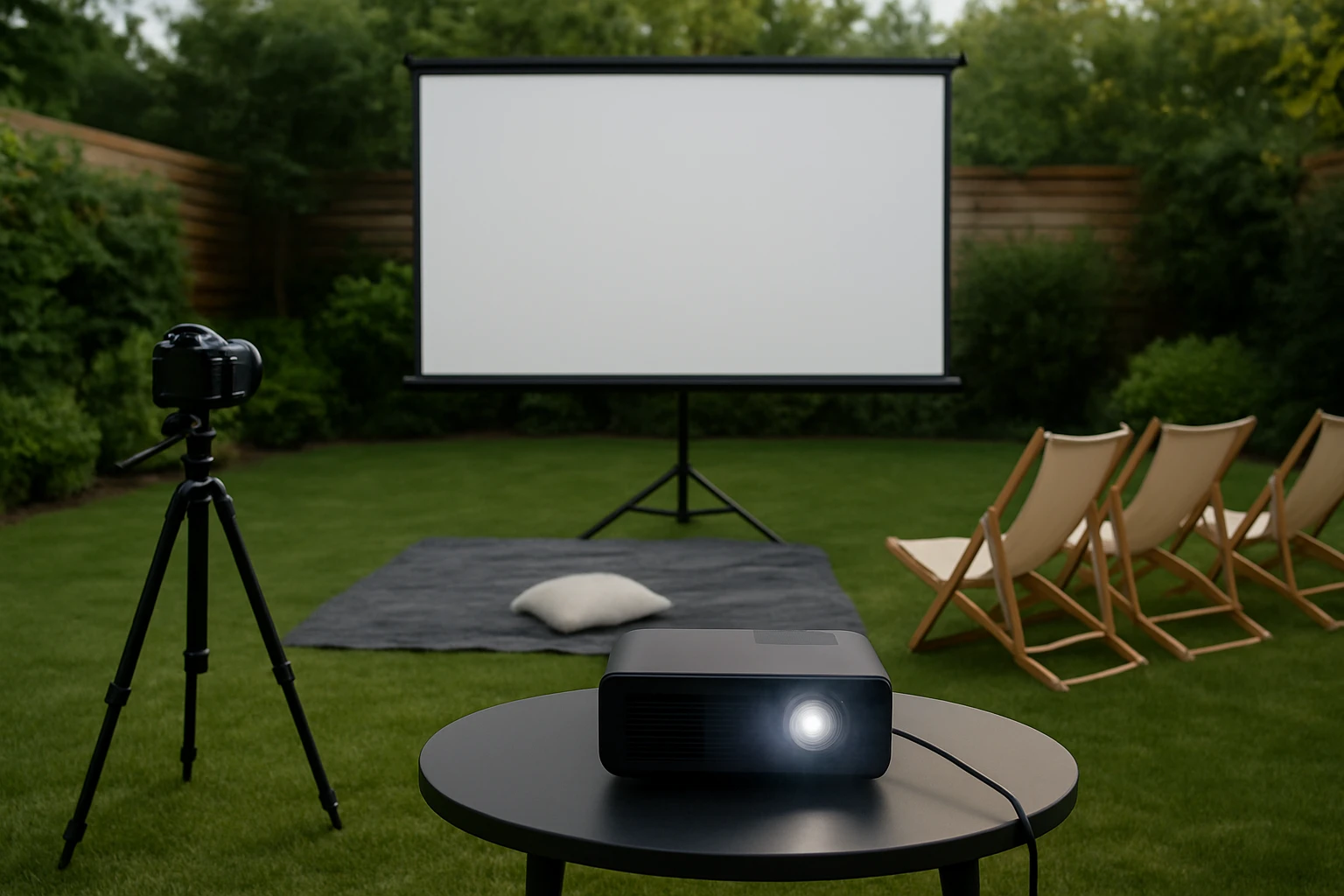
How to Livestream a Backyard Movie Night: Step‑by‑Step Guide to Setup, Audio & Streaming to YouTube or Facebook
Introduction
Hosting a backyard movie night has become a popular way to bring friends and family together under the stars. This guide teaches the reader how to transform an ordinary garden into a professional‑looking outdoor cinema while simultaneously streaming the event to YouTube or Facebook. By following each step, one will learn to select the right screen, configure a portable projector, arrange clear audio, and manage a live stream that reaches remote viewers. The result is an engaging, shareable experience that combines the intimacy of an outdoor gathering with the reach of social media.
What You’ll Need
- Outdoor projection screen (inflatable or foldable)
- Portable projector with HDMI/USB connectivity
- Bluetooth speaker or external audio system
- Smartphone, tablet, or laptop for streaming software
- Stable Wi‑Fi connection or mobile hotspot
- Power source (extension cords, portable battery, or generator)
- Tripod or mounting bracket for the projector
- Cables (HDMI, USB‑C, power)
- Lighting control (string lights, blackout curtains)
Step 1: Choose the Ideal Location
Begin by selecting a flat, open area in the backyard that receives minimal ambient light after sunset. The surface should be free of obstacles that could cast shadows on the screen. Position the screen so that the audience faces away from streetlights or bright windows. If the yard is uneven, lay down a few interlocking foam tiles to create a stable base for the screen frame and projector.
Step 2: Set Up the Projection Screen
Choosing the right screen influences image clarity and ease of setup. For large gatherings, the CZGBRO Inflatable Projector Screen provides a 14‑foot viewing area that inflates in two to three minutes using the included air blower. Its non‑detachable design reduces creases, and the sturdy oxford‑cloth frame ensures stability even in light breezes. At $75.99 and a 4.6‑star rating from 722 reviews, it offers excellent value for outdoor events.
If portability and storage are paramount, the Mdbebbron Foldable Projector Screen folds into a compact size that fits in a backpack. The anti‑crease polyester fabric delivers a smooth image surface, and the 120‑inch diagonal (104" × 58") is suitable for medium‑sized audiences. Priced at $22.99 with a 4.5‑star rating from over 35,000 reviews, it is a budget‑friendly alternative.
To install either screen, follow these steps:
- Lay out the screen on a flat surface and attach the included D‑rings to the ground using rope or bungee cords.
- Connect the air blower (inflatable model) or unfold the frame (foldable model) and secure all corners.
- Check tension by gently pulling the bottom edges; the screen should remain taut without sagging.
Step 3: Position and Connect the Projector
The projector must be placed at the correct throw distance to fill the screen without distortion. The TMY Mini Bluetooth Projector offers a flexible projection range of 1.5–6 meters, allowing placement on a sturdy tripod or a low table. Its 1080p Full HD resolution provides sharp images, and the built‑in Bluetooth enables wireless audio pairing if a separate speaker is preferred. At $47.46 and a 4.3‑star rating from 20,304 reviews, it balances performance and price.
Connect the projector to the video source using HDMI or USB‑C. For streaming from a smartphone, attach a compatible HDMI adapter (e.g., USB‑C to HDMI). Ensure the projector’s lamp is set to its brightest mode for outdoor use, and adjust the focus until the image is crisp across the entire screen.
Step 4: Set Up Audio for the Audience
Clear audio is essential for an enjoyable movie night. While the TMY projector includes Bluetooth, its built‑in speaker is insufficient for large outdoor spaces. Pair the projector with a portable Bluetooth speaker that delivers at least 30 W of power, or connect an external PA system using the projector’s 3.5 mm audio jack. Place the speaker behind the screen to prevent sound from being blocked, and secure it on a stable surface to avoid vibrations.
Test the audio level by playing a short clip at the intended volume. Adjust the speaker’s EQ settings to emphasize dialogue if background music overwhelms speech.
Step 5: Prepare the Live Stream
To broadcast the event, one needs streaming software such as OBS Studio (free) or the built‑in streaming feature of a smartphone app. Follow these sub‑steps:
- Connect a laptop to the projector via HDMI, then capture the HDMI output using a capture card (e.g., Elgato Cam Link) if the laptop does not have a direct HDMI input.
- Install OBS Studio and add a new “Video Capture Device” source, selecting the capture card as the input.
- Configure the stream key and server URL for YouTube Live or Facebook Live within OBS’s “Stream” settings.
- Set the output resolution to match the projector’s native resolution (1920 × 1080) and choose a bitrate of 4500 kbps for reliable quality.
- Perform a short test stream to verify audio sync and video clarity.
Ensure a stable internet connection by positioning a Wi‑Fi extender near the streaming device, or use a mobile hotspot with at least 10 Mbps upload speed. A backup power bank for the streaming laptop can prevent interruptions.
Step 6: Run a Final Test and Adjust Settings
Before guests arrive, conduct a full rehearsal:
- Play a 5‑minute segment of the chosen movie.
- Check screen brightness, focus, and color balance under the expected ambient lighting.
- Verify that the live stream is receiving audio and video without latency.
- Walk around the audience area to confirm that the image remains sharp from multiple viewing angles.
If any issue arises, adjust the projector’s keystone correction, reposition the screen, or tighten the D‑ring ropes for better stability.
Tips & Pro Tips
- Wind protection: Even a light breeze can cause an inflatable screen to wobble. Use sandbags or weighted stakes at each D‑ring to anchor the screen firmly.
- Ambient light control: Hang blackout curtains or use tall plants to shield the screen from streetlights. Turning off nearby porch lights 30 minutes before the start improves contrast.
- Battery backup: Keep a high‑capacity power bank (20,000 mAh) for the projector and Bluetooth speaker in case of a power outage.
- Audio sync: If the live stream audio lags, enable “Audio Delay” in OBS and set it to 200 ms to align with the video.
- Engage the audience online: Post a poll on the streaming platform asking viewers to vote for a post‑movie discussion topic.
Troubleshooting
| Problem | Possible Cause | Solution |
|---|---|---|
| Screen not inflating fully | Blocked air vent or faulty blower | Check the blower intake, clear any obstructions, and ensure the zippered opening is closed securely. |
| Image appears blurry | Projector out of focus or incorrect throw distance | Adjust the focus ring and move the projector closer or farther until the image is sharp across the entire screen. |
| Audio cuts out during stream | Wi‑Fi interference or Bluetooth disconnection | Switch to a wired audio connection if possible, or relocate the router to reduce interference. |
| Live stream buffering | Insufficient upload bandwidth | Reduce the streaming bitrate to 3000 kbps or use a wired Ethernet connection. |
Conclusion
By following this comprehensive guide, one can create a memorable backyard movie night that reaches both local guests and online viewers. Selecting the appropriate screen, projector, and audio equipment ensures a high‑quality visual experience, while careful streaming setup guarantees a smooth broadcast to YouTube or Facebook. With the tips and troubleshooting advice provided, any unexpected issue can be resolved quickly, allowing the host to focus on entertainment and community building.
Products Mentioned in This Guide
Frequently Asked Questions
What type of projector works best for a backyard movie night livestream?
A portable LED projector with at least 3000 lumens, HDMI/USB‑C inputs, and built‑in speaker support is ideal for bright outdoor settings and easy streaming connections.
How can I ensure a stable internet connection for live streaming?
Use a reliable Wi‑Fi router placed close to the streaming device or a 4G/5G mobile hotspot with sufficient bandwidth (minimum 5 Mbps upload) and keep it protected from weather.
Do I need a separate audio system for the livestream?
Yes, connect a Bluetooth or wired speaker to the streaming device so the remote audience hears clear sound, and optionally use a mixer to balance mic and movie audio.
What is the simplest way to stream to YouTube or Facebook from my phone?
Install the YouTube or Facebook Live app, select "Go Live," choose the screen‑capture or external camera source, and start streaming after testing audio and video levels.
How can I power my equipment for an evening event?
Run extension cords to a nearby outlet, or use a portable battery pack or generator rated for the total wattage of the projector, speakers, and streaming device.