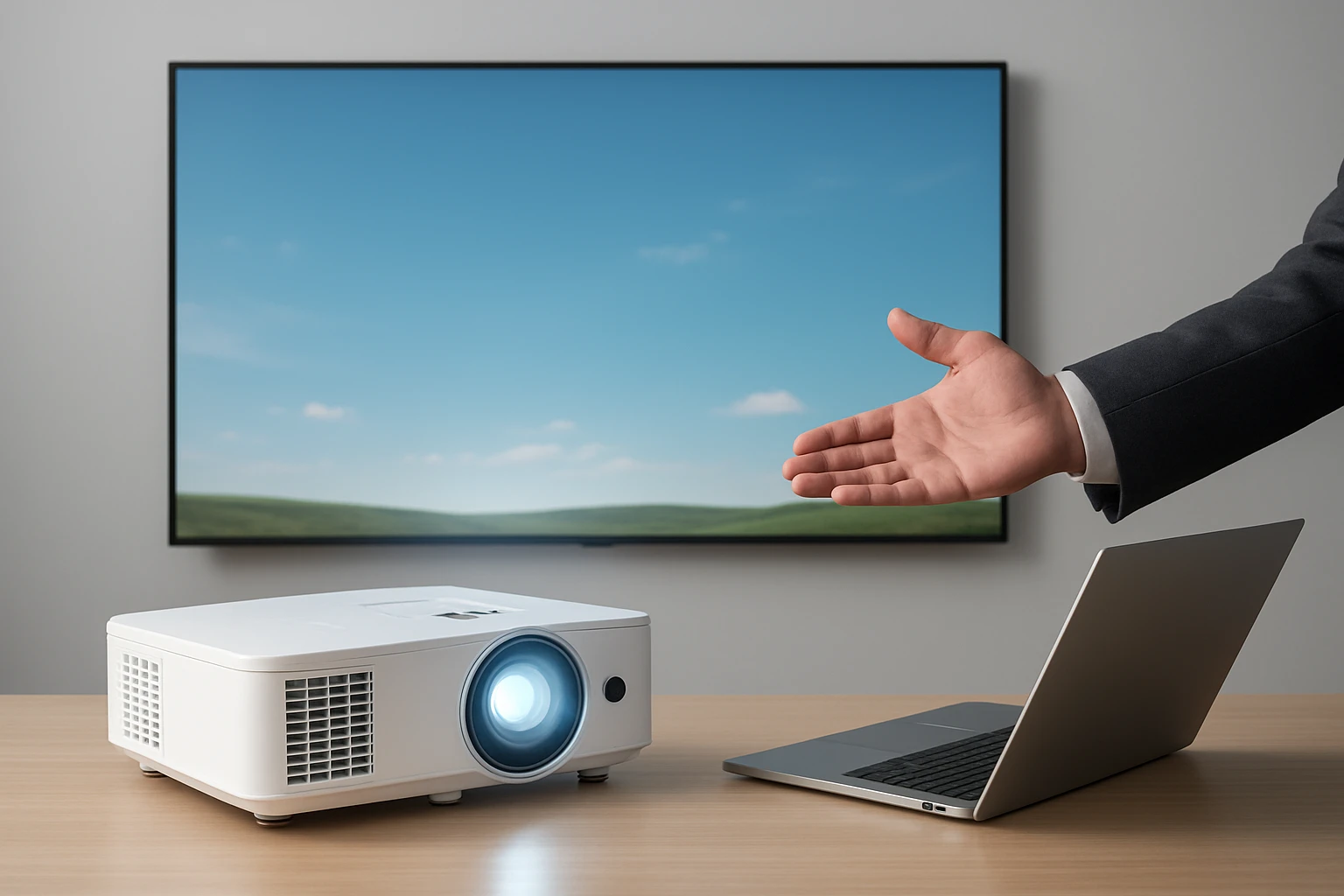
How to Troubleshoot Projector Casting to Smart TV: 10 Easy Fixes for AirPlay, Chromecast & Miracast
Introduction
Projectors offer a cinematic experience, but casting from a laptop, phone, or tablet to a smart TV can be fraught with hiccups. In this guide, the reader will learn ten systematic fixes that address connectivity, signal stability, and compatibility across AirPlay, Chromecast, and Miracast. Understanding these solutions saves time, reduces frustration, and ensures that presentations, movies, and games play smoothly without costly professional service calls.
The steps are organized from basic network checks to advanced device configuration, allowing one to isolate the root cause quickly. Each fix is explained with clear actions, and where a hardware tool can simplify the process, a product recommendation is provided. By following this guide, the reader will be able to diagnose and resolve most casting problems independently.
What You'll Need
- Stable Wi‑Fi network (2.4 GHz and 5 GHz bands)
- Compatible smart TV (e.g., Roku 24-Inch Smart TV or Samsung 65-Inch Crystal UHD TV)
- Projector with HDMI output
- Optional: MpioLife Wireless Display Adapter for wireless HDMI bridging
- Basic tools: screwdriver, cable ties, and a notebook for IP addresses
Step 1: Verify Network Integrity
Both the projector (or its attached adapter) and the smart TV must reside on the same Wi‑Fi network. Begin by logging into your router's admin panel and confirming that the SSID is identical for 2.4 GHz and 5 GHz bands. If the devices are on different bands, performance may degrade, especially for Miracast, which prefers 5 GHz for low latency.
Run a speed test on a phone connected to the same network; aim for at least 15 Mbps downstream for HD streaming. If the test falls short, reposition the router or add a mesh node. A stable network eliminates the most common cause of dropped connections.
Step 2: Update Firmware on All Devices
Outdated firmware often introduces compatibility bugs. Navigate to the settings menu on the Roku 24-Inch Smart TV and select "System > System update". The Roku platform typically pushes updates automatically, but a manual check ensures the latest patches are installed.
Similarly, update the Samsung TV by going to "Settings > Support > Software Update". For the projector, consult the manufacturer's website and apply any available firmware. Updated software often adds support for newer casting protocols and resolves intermittent lag.
Step 3: Configure TV Input Settings for HDMI Cast
When using a wireless HDMI dongle, the TV must be set to the correct HDMI source. On the Roku TV, press the Home button, select "Settings > TV Inputs", and enable "HDMI 1" as an external source. On Samsung, go to "Settings > General > External Device Manager" and turn on "Anynet+ (HDMI‑CEC)" to allow the TV to detect the adapter automatically.
Enabling HDMI‑CEC ensures that the TV can power on or switch inputs when a casting session starts, reducing the need for manual input changes.
Step 4: Use a Dedicated Wireless HDMI Adapter
If the projector lacks built‑in Wi‑Fi, the MpioLife Wireless Display Adapter provides a plug‑and‑play solution. Insert the adapter into the projector's HDMI port, connect the USB power cable, and the device will appear as a wireless display on the TV.
This adapter supports AirPlay, Miracast, and DLNA, making it a universal bridge. Its dual‑band 2.4 GHz/5 GHz capability delivers a stable connection up to 65 feet, which is essential for large rooms where the router may be distant.
Step 5: Ensure Correct Casting Protocol is Selected
AirPlay works exclusively with Apple devices, Chromecast with Google‑based devices, and Miracast with Windows or Android. Attempting to use the wrong protocol results in a silent failure. On an iPhone, open Control Center, tap Screen Mirroring, and select the TV name. On Android, pull down the Quick Settings panel, choose Cast, and select the TV or wireless adapter.
For Windows, press Win+K, choose the TV, and confirm the connection. Verifying that the device and TV share the same protocol eliminates mismatched attempts.
Step 6: Adjust Resolution and Refresh Rate
Projectors often default to 1080p at 60 Hz, while some smart TVs prefer 720p or 4K at 30 Hz for wireless streams. Open the display settings on the source device and match the resolution to the TV's native mode. For example, when casting from a laptop to the Samsung 65-Inch Crystal UHD TV, select 3840×2160 (4K) and a 60 Hz refresh rate if the network can sustain the bandwidth.
If lag persists, lower the resolution to 1080p or reduce the refresh rate to 30 Hz. This trade‑off often stabilizes the stream without noticeably degrading visual quality on a typical viewing distance.
Step 7: Clear Cache and Reset Casting Apps
Mobile casting apps store temporary data that can become corrupted. On iOS, go to Settings > General > iPhone Storage, locate the AirPlay‑related app, and select "Offload App". On Android, open Settings > Apps, find the Cast app, and tap "Clear Cache".
After clearing, restart the device and attempt casting again. This simple maintenance step resolves many unexplained black screens or audio‑only streams.
Step 8: Disable VPNs and Firewalls Temporarily
Virtual Private Networks encrypt traffic and may block the multicast packets used by Miracast and Chromecast. If a VPN is active, disconnect it before casting. Similarly, some router firewalls block port 8008 (used by Chromecast) or port 7000 (used by AirPlay). Access the router's security settings and create a temporary exception for these ports.
Remember to re‑enable security features after the casting session to maintain network protection.
Step 9: Perform a Factory Reset on Problematic Devices
If all else fails, a factory reset can restore default network and protocol settings. On the Roku TV, navigate to "Settings > System > Advanced System Settings > Factory Reset" and follow the prompts. On Samsung, go to "Settings > General > Reset" and enter the PIN.
After resetting, re‑enter Wi‑Fi credentials and reinstall any necessary apps. This clean slate often resolves obscure bugs that accumulate after multiple firmware updates.
Step 10: Test with an Alternative Casting Source
To isolate whether the issue lies with the source device or the TV, try casting from a different phone, laptop, or tablet. If the second device works, the original source likely has a configuration problem. If both fail, focus on the TV or adapter settings.
Document the results in a simple table to track which combinations succeed. This systematic approach prevents unnecessary hardware purchases.
Tips & Pro Tips
- Place the router at a central location to minimize signal loss.
- Use a wired Ethernet connection for the TV if Wi‑Fi remains unstable; many smart TVs have an Ethernet port.
- Keep the TV's software auto‑update enabled to receive future protocol improvements.
- When using the MpioLife Wireless Display Adapter, avoid placing metal objects near the antenna, as they can degrade the 5 GHz signal.
- For presentations, enable Miracast's "Low Latency Mode" on Windows to reduce delay.
Conclusion
By following these ten structured fixes, the reader can confidently troubleshoot most projector‑to‑smart‑TV casting problems across AirPlay, Chromecast, and Miracast. The guide emphasizes network health, firmware currency, correct protocol selection, and the strategic use of tools such as the MpioLife Wireless Display Adapter and reliable smart TVs. Implementing the steps reduces downtime, improves visual fidelity, and ensures a seamless viewing experience for both professional and personal use.
Products Mentioned in This Guide
Frequently Asked Questions
Why is my projector not casting to my smart TV via AirPlay?
AirPlay may fail if the TV and casting device are on different Wi‑Fi bands, the TV firmware is outdated, or screen mirroring is disabled in the TV settings.
How can I fix Chromecast casting issues with a projector?
Ensure both devices share the same network, restart the Chromecast, and verify the Google Home app is up to date.
What network settings should I check for Miracast casting problems?
Confirm the Wi‑Fi is set to 2.4 GHz, enable Wi‑Fi Direct on both devices, and disable any VPN or firewall that may block peer‑to‑peer connections.
Does using a 2.4 GHz vs 5 GHz Wi‑Fi affect casting stability?
Yes, 2.4 GHz offers better range and penetration, while 5 GHz provides higher bandwidth; choose the band that balances distance and signal strength for your setup.
Do I need any hardware tools to troubleshoot projector casting?
A simple network analyzer app or a USB HDMI capture device can help diagnose signal loss, but most issues are resolved through software settings.