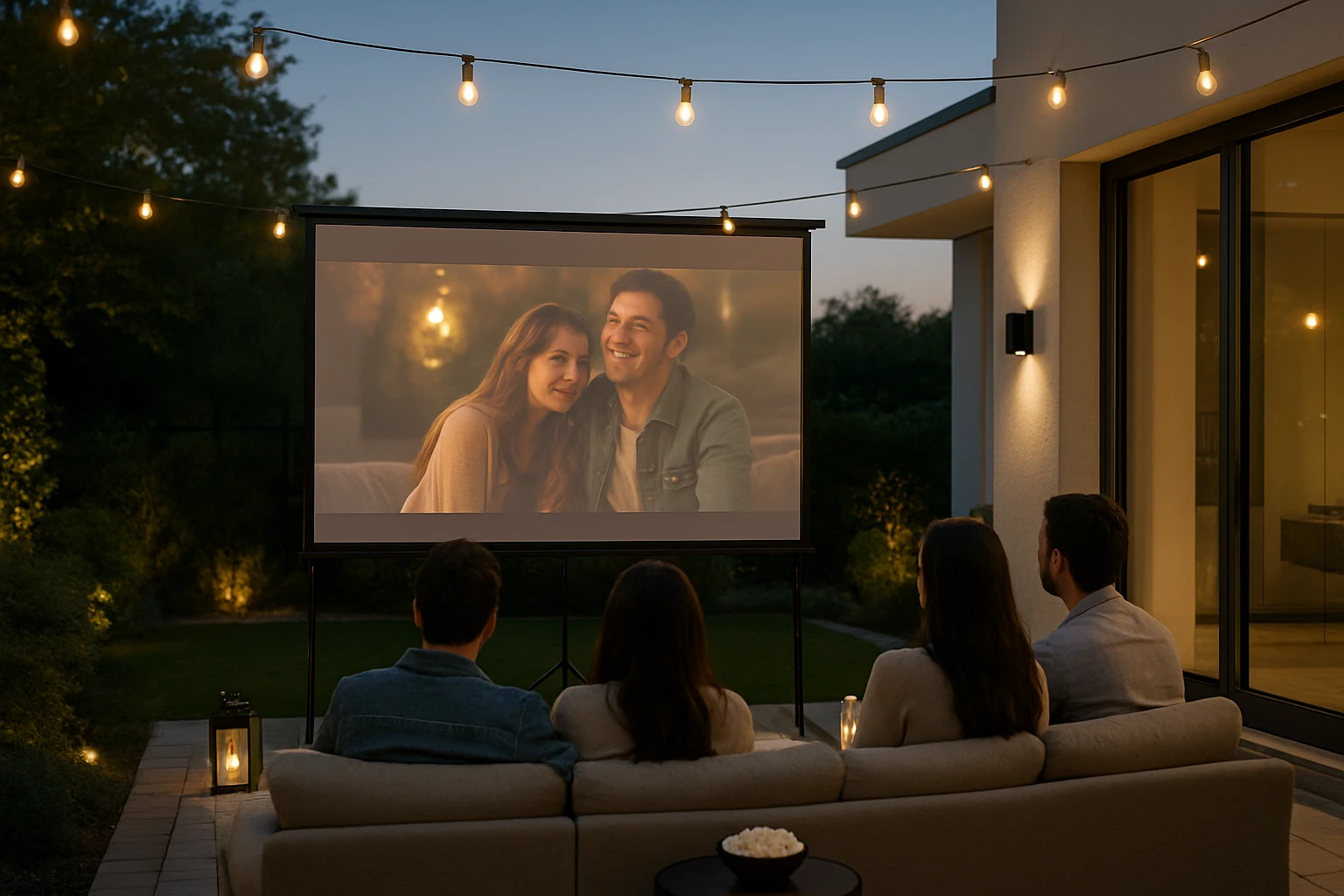
How to Create Smart Home Lighting Scenes for the Perfect Outdoor Movie Night
Introduction
This guide explains how to design, install, and program a cohesive smart lighting environment that enhances an outdoor movie experience. Readers will discover how to combine ambient, accent, and functional lighting while maintaining energy efficiency and aesthetic appeal. The instructions rely on widely available Amazon products that have proven reliability and positive customer feedback. By following the steps, one can transform a backyard or patio into a cinema‑like setting without professional assistance.
What You'll Need
- Smart LED strips for accent lighting
- Floor lamp for ambient glow
- Weather‑resistant flood lights for perimeter illumination
- String lights for decorative framing
- Smartphone with the respective companion apps
- Wi‑Fi network with stable coverage in the outdoor area
- Power outlets or outdoor‑rated extension cords
Step 1: Plan the Lighting Layout
Begin by sketching the viewing area, screen placement, and seating arrangement. Identify zones where low‑level illumination will prevent glare while preserving the cinematic atmosphere. Typical zones include the screen border, pathways, and the seating perimeter. Allocate each zone to a specific product type to simplify later configuration.
Step 2: Install Base Perimeter Lighting
Install the Govee Outdoor Flood Lights along the outer edge of the viewing space. These lights provide up to 1000 lumens per unit, cover a temperature range from 2700K to 6500K, and are rated IP66 for weather resistance. At a price of $89.99 and a rating of 4.4/5 from 406 reviews, they deliver professional‑grade illumination at a reasonable cost. Mount the four lights on walls or stakes, ensuring the control cable connects all units for synchronized operation. Use the Govee Home app to set a warm, low‑intensity wash that outlines the area without distracting the audience.
Step 3: Add Decorative String Lighting
Hang the Govee Outdoor String Lights around the screen frame or drape them across nearby foliage. Each 48‑ft strand contains 15 dimmable LEDs that support 47 scene modes and music synchronization. Priced at $39.98 with a 4.2/5 rating from 3,812 reviews, they offer versatile color control and are IP65 waterproof. Secure the lights with zip ties or gentle clips, keeping the power adapter in a sheltered location. Through the app, select a subtle “Sunset Glow” mode that transitions slowly, creating a welcoming ambience before the film begins.
Step 4: Install Accent Lighting with LED Strips
Apply the Kasa Smart LED Light Strip behind the screen or along the edges of steps. This 16.4‑ft strip offers 16 million colors, high brightness, and the ability to cut to length, making it adaptable to various configurations. At $22.99 and a 4.4/5 rating from 5,197 reviews, it provides excellent value for dynamic accent lighting. Use the included 3M adhesive backing to attach the strip securely, then connect the controller following the indicated arrow direction. Within the Kasa app, create a scene named “Movie Night Accent” that sets a deep blue hue at 30 % brightness to reduce eye strain while preserving visual interest.
Step 5: Provide Ambient Glow with a Floor Lamp
Place the Luckystyle Smart Corner Floor Lamp in a corner where guests may gather before the screening. This lamp features RGB+IC technology, music‑synchronized color changes, and multiple control methods including Bluetooth app and remote. It costs $28.47 and holds a 4.3/5 rating from 492 reviews, making it an affordable source of soft ambient light. Set the lamp to a warm white tone at 20 % brightness to create a cozy pre‑show environment. Enable the music mode to allow the lamp to react subtly to background playlists, adding a layer of sensory immersion.
Step 6: Configure Smart Controls and Scenes
Open each companion app (Kasa, Govee Home, Luckystyle) and ensure all devices are linked to the same Wi‑Fi network. Create a master scene named “Outdoor Movie Night” that triggers the following actions simultaneously:
- Flood lights switch to a low‑intensity warm wash.
- String lights activate the “Sunset Glow” mode.
- LED strip changes to deep blue at 30 % brightness.
- Floor lamp sets warm white at 20 % brightness.
- All devices enable a 30‑minute timer to turn off automatically after the film.
Use the grouping feature in the Kasa app to link the LED strip with any other Kasa devices for future expansion. In the Govee app, enable “Smart Actions” so that the flood lights dim further when the screen power is turned off, preserving energy. Test the scene by activating it through voice command via Alexa or Google Assistant, confirming that each product responds as intended.
Tips & Pro Tips
- Run a short cable test before final mounting to verify that each flood light receives power when the control cable is fully connected.
- When cutting the Kasa LED strip, ensure the cut is made at the marked segment to preserve waterproof sealing.
- Position the floor lamp on a non‑slippery mat to prevent accidental tipping during high‑energy moments.
- Use the Govee app’s DIY mode to program a custom gradient on the string lights that matches the movie’s theme.
- Schedule the master scene to activate 15 minutes before sunset to allow guests to settle comfortably.
Troubleshooting
Problem: One or more flood lights do not respond when the master scene is activated.
Solution: Verify that the control cable is fully inserted into each flood light and that the power adapter is securely connected. Ensure the Wi‑Fi signal strength at each light is above –70 dBm; if not, relocate a Wi‑Fi extender closer to the outdoor area.
Problem: The LED strip flickers or disconnects from the app.
Solution: Restart the Kasa app, then power‑cycle the strip by unplugging it for ten seconds. Re‑add the device to the app if it does not reappear automatically.
Conclusion
By following this guide, one can create a fully integrated smart lighting environment that elevates any outdoor movie night. The combination of perimeter flood lights, decorative string lights, accent LED strips, and a versatile floor lamp provides both functional illumination and atmospheric flair. Leveraging the scheduling, grouping, and music‑sync capabilities of each product ensures a seamless, hands‑free experience for hosts and guests alike. One is encouraged to experiment with color palettes and timing to personalize future gatherings.
Products Mentioned in This Guide
Frequently Asked Questions
What types of smart lighting are recommended for an outdoor movie night?
Use smart LED strips for accent lighting, a floor lamp for ambient glow, weather‑resistant flood lights for perimeter illumination, and string lights for decorative framing.
Do I need a special Wi‑Fi setup for outdoor smart lighting?
A stable Wi‑Fi signal that reaches the entire viewing area is essential; consider a mesh extender if coverage is weak.
How can I create a lighting scene that doesn’t distract from the screen?
Program low‑level accent lights and dim the flood lights while keeping the floor lamp at a soft glow to provide enough visibility without glare.
Are the recommended products safe for outdoor use?
Yes, choose weather‑rated LED strips and flood lights, and use outdoor‑rated extension cords to protect against moisture.
Can I control all the lights from a single app?
Most Amazon‑compatible smart lights integrate with the same companion app, allowing you to set and trigger a unified movie‑night scene.